
The upcoming expiration of Secure Boot certificates in June 2026 won’t stop devices from running, but it will prevent them from receiving critical boot-level security updates. For MSPs, this risk can easily go unnoticed until it becomes a security gap. This article explains how to manage the update through Microsoft Intune and how to ensure visibility and consistent deployment across a multi-tenant environment.
Secure Boot is a cornerstone of modern device security, ensuring that only trusted software runs during system startup. It relies on a set of certificates stored in the system firmware (UEFI). However, like all certificates, these eventually expire. The secure boot certificates originally issued in 2011 begin expiring in June 2026, and that can cause security issues if not addressed in time.
Devices that haven’t received the newer 2023 certificates will continue to start and operate normally even after June 2026, and standard Windows updates will still install without issue. But without the updated certificates, those devices will no longer be able to receive new security protections for the early boot process. This includes updates to Windows Boot Manager, Secure Boot databases (DB/DBX), revocation lists, and mitigations for newly discovered boot-level vulnerabilities.
This article covers everything you need to know about deploying and monitoring Secure Boot certificate updates from Microsoft Intune, and how Plentics Suite can help MSPs with this update.
How to Update Secure Boot Certificate via Microsoft Intune
The update can be deployed by using
- traditional GPO,
- registry modifications or
- Intune policies,
which we will be focusing on in this article. Here is how to trigger the rollout for your managed devices in Intune:
- Log in to the Microsoft Intune admin center.
- Navigate to Devices > Configuration > Create > New Policy.
- Create the policy:
- Platform: Windows 10 and later
- Profile type: Settings catalog
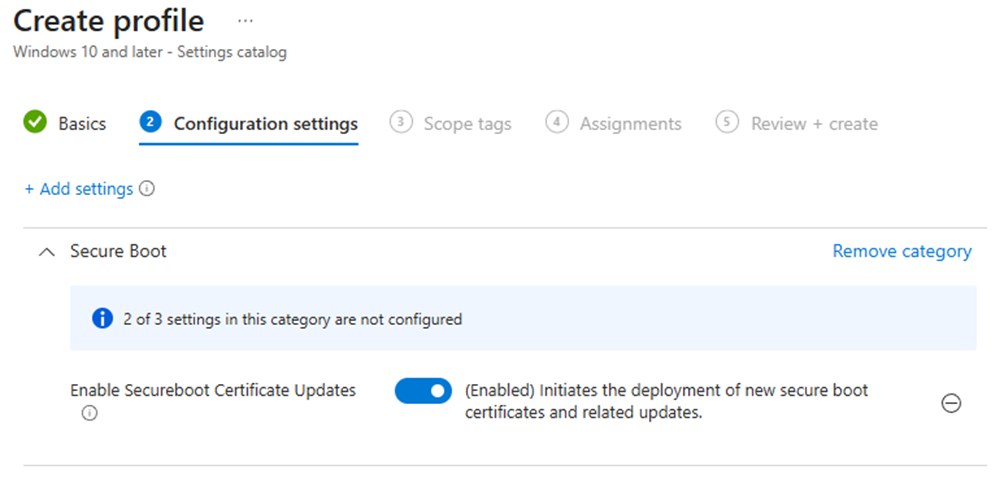
- Search for Secure Boot in the settings picker and select Enable Secureboot Certificate Updates settings under Secure Boot category.
- You can also select and enable Configure Microsoft Update Managed Opt In setting if you wish to participate in a Controlled Feature rollout of Secure Boot certificate update managed by Microsoft.
- Change the setting value to Enabled.
- Select Next and continue to assignments.
- Assign the policy to All devices.
- Configure assignment filter if you need to deploy the setting only to specific device models. More information can be found here.
Monitor the Certificate Update Status
There are two ways to monitor the certificate status in Intune. You can:
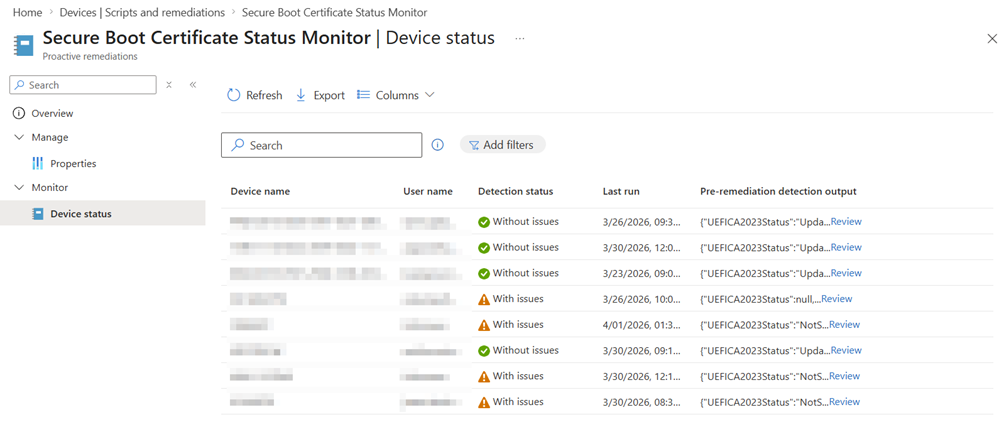
- Deploy a remediation script provided by Microsoft
- The script collects the certificate status from registry and event viewer. If the certificate has been updated successfully, script detection status will be Without issues in the script’s device status report.
- You can review script output in the device status report to find detailed information if there are any issues.
- Review Secure Boot report in Intune:
- Log in to Intune admin center.
- Navigate to Reports > Windows Autopatch > Windows quality updates.
- Select the Reports tab.
- Open Secure Boot status report.
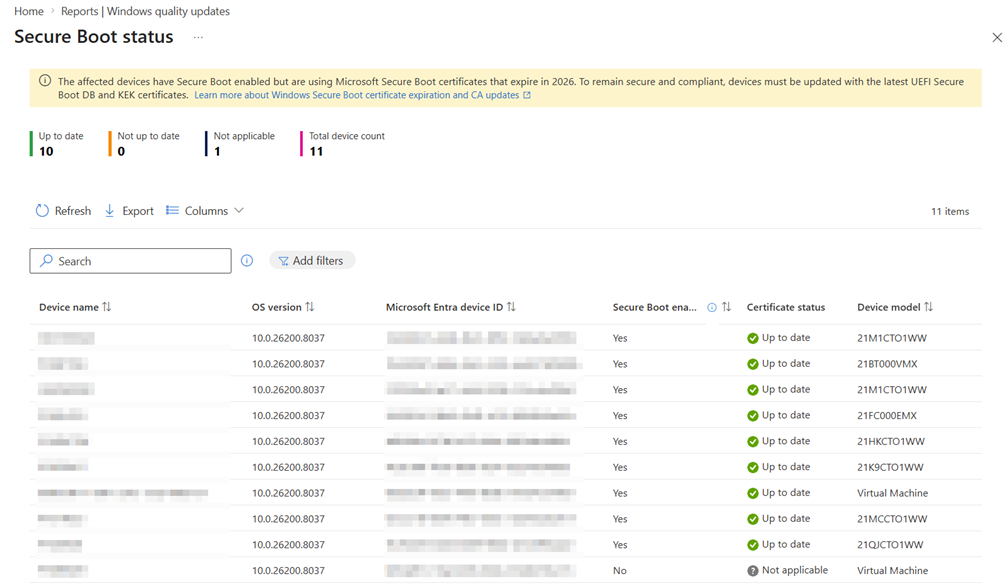
Remediation script is useful if you have issues with updating specific device models, as the update may require you to update device firmware before the certificate can be updated. The built-in Secure Boot status on the other hand is useful for a quick overview of the status.
⚠️ In our tests we found that it can take days before the status is visible in the built-in report. We also found that the certificate status may be reported as up-to-date, even though the device needs to be restarted before the update if fully processed.
Multi-tenant Deployment in Plentics Suite
Creating the configuration policy to tens or hundreds of tenants is a time-consuming task, without even talking about monitoring the certificate status. With Plentics Suite, MSPs can deploy policies (like secure boot certificate update) to their customers with just a few clicks of a button. To deploy the update to multiple tenants, Plentics Suite partner only needs to:
- Create the secure boot policy to template/gold tenant that is maintained by the MSP.
- You can use the same instructions that were provided earlier in this article.
- Log in to Plentics Suite portal.
- Navigate to Tenant Management > Create Configurations.
- Select your template tenant as the source tenant.
- Search and select the Secure Boot configuration policy from the list.
- By default, Plentics Suite creates the assignment based on the source tenant. You can modify the assignments from Assignments button and deploy the policy to all devices.
- Select target tenant(s) where the policy will be created to and click Confirm.
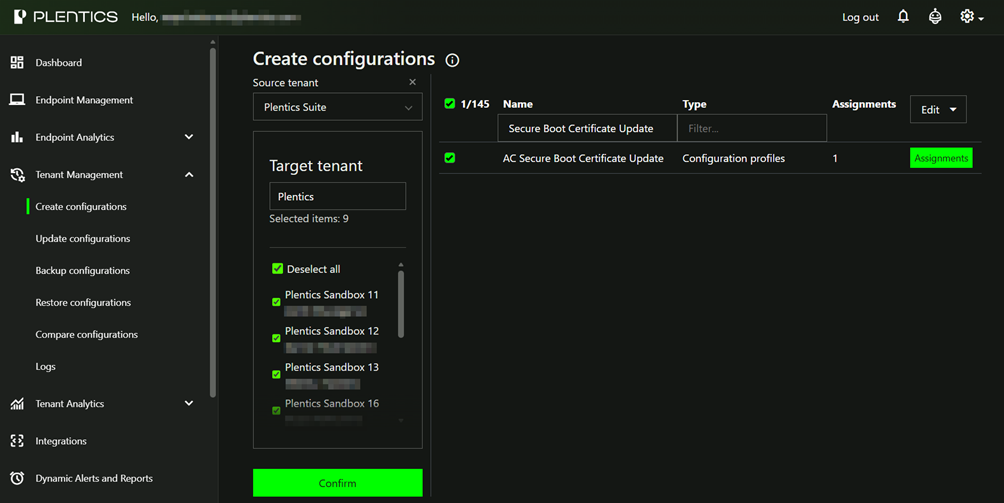
- The policy will be now created to all selected tenants and endpoints will update the certificate to the latest version.
Monitor the Certificate Status in Plentics Suite
You can track the certificate and secure boot status from the newly added Secure Boot Endpoint Analytics report in Plentics Suite portal. Unlike built-in Secure Boot report in, our report will be near real time as the certificate status is collected by Plentics Endpoint Client.
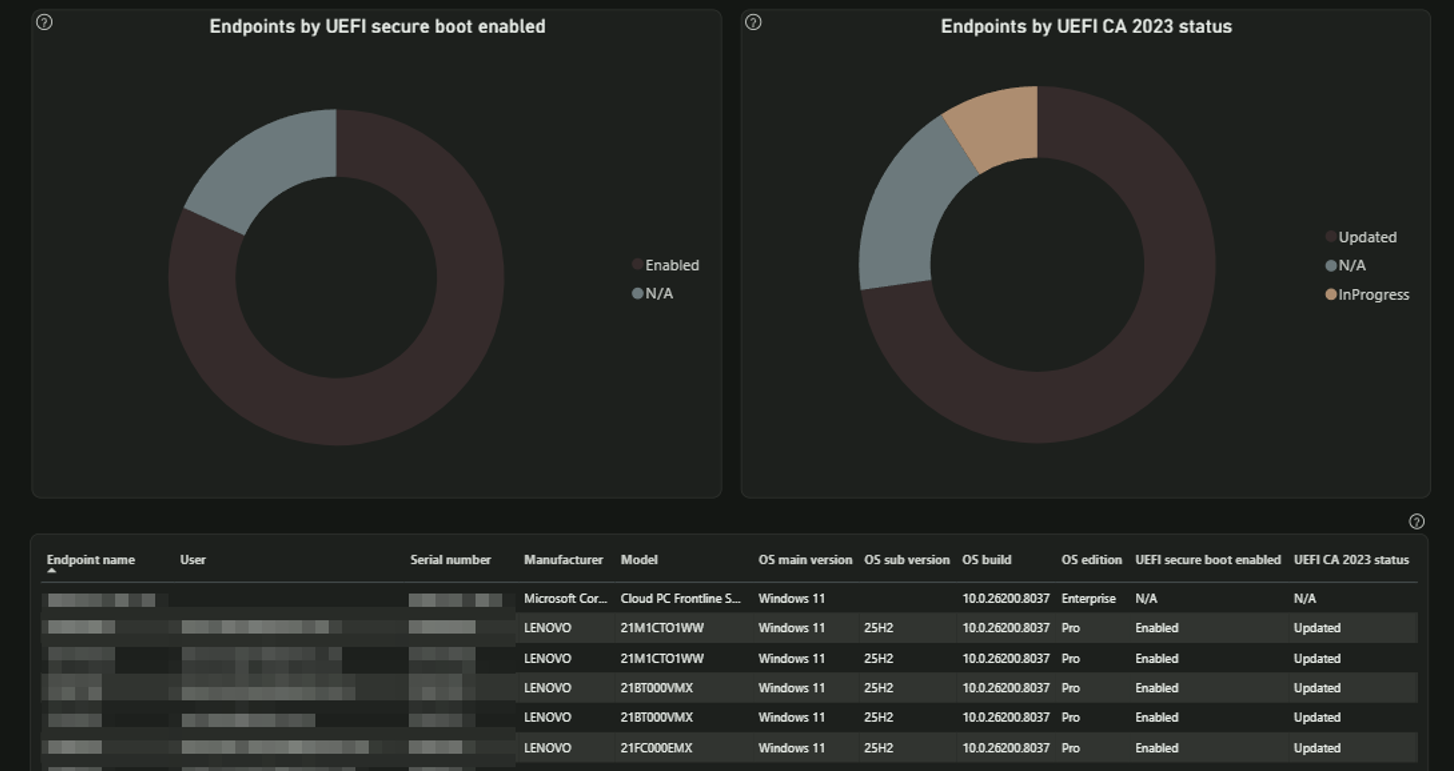
Secure Boot Status
- Enabled – Secure Boot is on.
- Not Enabled – Secure Boot is off, leaving devices without boot-level protection.
- N/A – The system may not support Secure Boot or Plentics Endpoint Client is not installed.
UEFI CA 2023 Status
- Updated – The certificate has been updated successfully
- In Progress – The update is actively in progress, or the device needs to be restarted.
- Not Started – The update has not yet run.
- Not Capable – The device does not support the update, or secure boot is not enabled.
- N/A – The system may not support Secure Boot or Plentics Endpoint Client is not installed.
Contact us if want to have a live demo and learn more about Plentics Suite.